What Is AI Image Blending? Blending vs. Combining Explained
AI image blending makes two or more images read as one coherent picture. How it differs from combining, and the techniques involved.
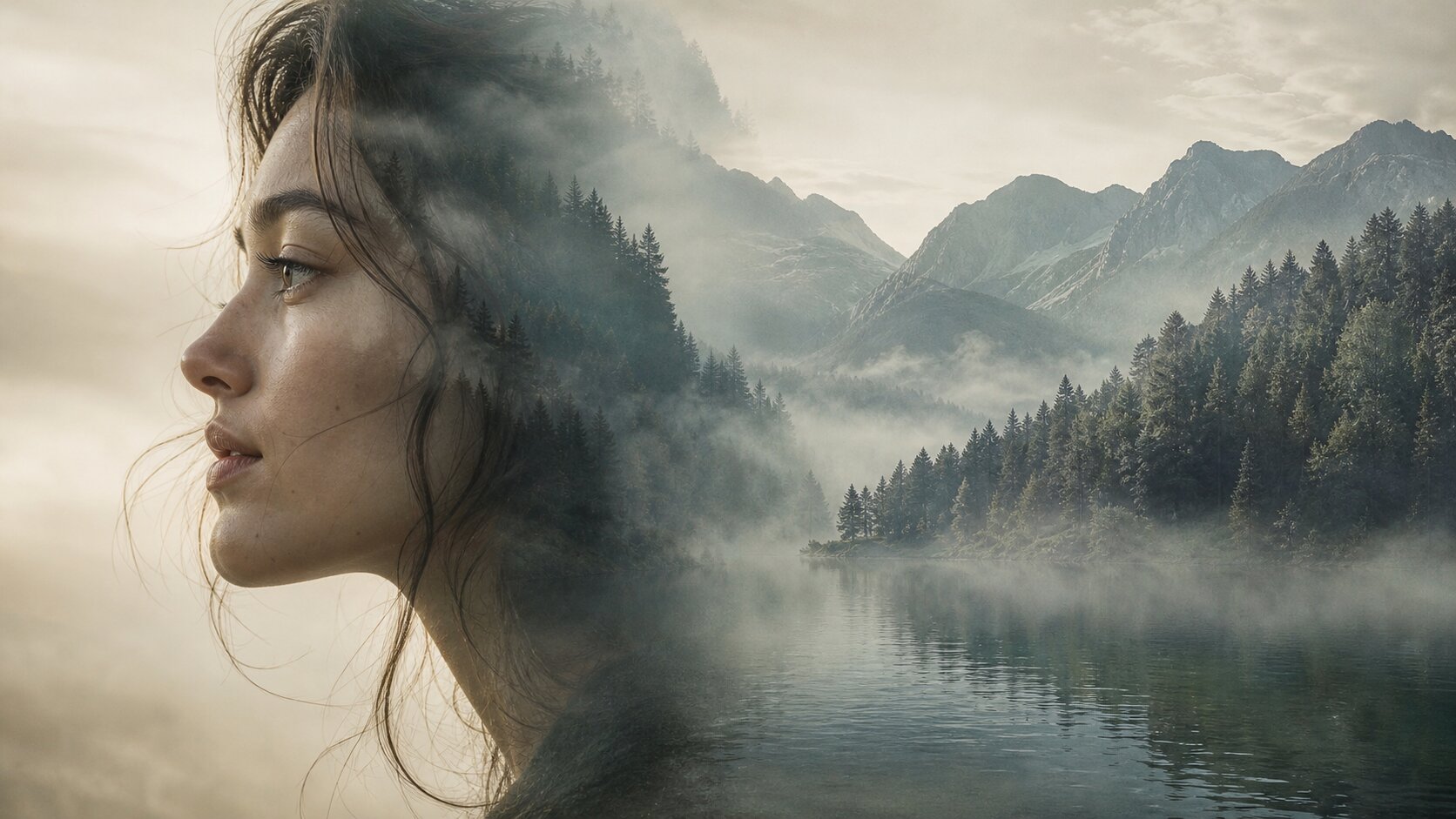
AI image blending is the practice of making two or more images read as one coherent picture. It goes further than overlapping them: the light, colour, shadows, and edges across every source are reconciled so the result looks like a photograph that was taken, rather than a picture assembled on a screen.
What Is AI Image Blending?
Blending is a family of techniques. Combining is one member of it. The distinction is worth holding onto, because it explains why some merges look convincing and others look like stickers.
Combining describes the outcome — multiple images end up in one frame. Blending describes the quality of that outcome — the sources have been made to agree with each other.
Two photos stacked in a grid are combined but not blended. Two photos that look like one continuous moment are blended.
The main blending techniques
| Technique | What it does | Typical use |
|---|---|---|
| Compositing | Places one subject into another scene and rebuilds the frame | Product on a model, person in a landscape |
| Harmonization | Matches colour, light, and grain of one image to another | Fixing a composite that looks pasted on |
| Stylisation | Applies one image's visual style to another | Photoreal scene rendered as a painting |
| Morphing | Transitions one image into another across a sequence | Timelapse-style transitions, motion studies |
| Colour transfer | Moves the colour palette of one image onto another | Seasonal grading, brand-consistent sets |
| Texture fusion | Blends surface texture across a boundary | Ageing or weather effects on a portrait |
Most tools that call themselves an "AI image combiner" are really running compositing with harmonization built in. When you read a guide about combining, the blending underneath is what is doing the work.
How Does AI Image Blending Work?
The blending happens during the denoising process, and it happens in layers of influence.
- Encoding. Every source photo is compressed into a latent map that keeps structure but discards raw pixel detail.
- Conditioning. Your prompt and a reference embedding for each source are attached to the model.
- Region assignment. The model works out which reference belongs where — usually guided by your prompt and by the order of your uploads.
- Reconciliation. Rather than keeping each region as it was, the model re-renders every region under one shared light. This is where harmonization actually occurs: shadows are re-cast, colour temperature is unified, and edges are re-integrated.
- Synthesis. The final latent is decoded into pixels.
Step 4 is the whole game. Manual blending tries to fake it with blend modes, colour matching, and soft masks — real work, and still never quite perfect. The AI approach regenerates the frame under a single consistent light, which is why it produces results that manual methods struggle to match.
How to Blend Images With AI Well
Step 1 — Harmonise the sources first
You cannot blend a warm indoor portrait with a cool outdoor scene and expect the model to reconcile the contradiction. It will average them, and the average looks flat.
Instead, pre-match: re-light the darker photo, match the white balance, match the crop scale. Try it freeAI Image EditorTransform a single photo with a text prompt — restyle, re-light, re-imagine. is the right tool for this — "match this photo's lighting to bright overcast daylight" or "warm this portrait to golden hour".
Step 2 — Choose the blend you actually want
- Do you want both subjects in one frame? → composite.
- Do you want one image's style applied to another? → stylisation.
- Do you want a smooth transition between two frames? → morphing.
Say which one in the prompt. "Blend" alone gives the model too much latitude.
Step 3 — Write the target image, not the operation
Instead of "blend these", write "a single continuous photograph of the woman standing on the pier in the seascape, matching the overcast light, feet naturally on the boards".
Step 4 — Blend in layers when you have many sources
If you are blending five images, do not expect one pass. Blend the two most important, then blend the result with the next. Each pass has fewer contradictions to resolve.
Step 5 — Refine the edge
If the blend is nearly right but the boundary still reads, ask for it explicitly: "softer transition where the subject meets the background", "match the background grain to the foreground". A single targeted refinement pass often lands it.
What Can You Blend?
A product with a lifestyle scene. The packshot and the mood board, reconciled into one sellable image.
A person with a location. Two shoots, one frame.
A photo with a painting style. A wedding photo rendered as an oil painting with the composition intact.
Two lighting conditions. The same portrait blended into a version that matches a different scene's light.
A subject with a texture. A plain object blended with a marble, wood, or fabric surface.
A rough sketch with a photo. A line drawing blended into a photorealistic render.
A sequence into a storyboard. Multiple frames blended into one narrative composition.
Two eras. A modern photo blended with a sepia-toned vintage treatment.
How to Get More Realistic Results
Fix the weakest input first. Blending quality is bounded by your worst source — a soft, badly lit photo caps the result no matter what the model does.
Match colour temperature explicitly. "Neutral daylight, 5500K" style instructions help more than "natural colours".
Match grain and sharpness. A sharp subject against a soft background looks composited. Ask the model to "keep the background slightly soft, focus on the subject" — or the reverse.
Blend fewer things at once. Two or three sources per pass gives a much cleaner result than eight.
Ask for the reconciliation you want. "Match the shadows to the light coming from the left window" tells the model exactly which harmonization to perform.
Use the highest tier when edges matter. Edge integration is where lower tiers show.
Upscale the finished frame. Blending often needs a little more resolution to look clean at full size.
Common Problems and Solutions
| Problem | Why it happens | Fix |
|---|---|---|
| The blend looks flat and lifeless | Contradictory inputs were averaged | Pre-match lighting and white balance before merging |
| A visible seam remains around the subject | Edge detail was not regenerated | Raise the quality tier, or ask for a softer transition |
| The subject looks sharper or softer than the scene | Sharpness was not reconciled | Ask the model to match the focus and grain of the scene |
| Colours shifted from the original | The subject was re-rendered | Correct afterwards, or use a tier with stronger reference adherence |
| The result looks like a filter | The prompt asked for a style rather than a scene | Describe the photograph you want, not the effect |
| Skin tone does not match the new light | White balance differs between sources | Name the light and ask for a matching skin tone |
Frequently Asked Questions
What is AI image blending?
AI image blending is the practice of merging two or more images into a single result that looks intentional and coherent. Rather than stacking pixels with a mask, an AI model regenerates the frame so that light, colour, shadow, and edges agree across all inputs.
What is the difference between blending and combining images?
Combining describes the goal — putting images together into one output. Blending describes the technique used to make that result look seamless. Combining can be done crudely with a collage, while blending means the sources have been reconciled so nothing looks pasted on.
What is image harmonization?
Harmonization is the specific sub-task of making one image visually consistent with another — matching colour temperature, shadow direction, contrast, and grain. It is the step that decides whether a composite reads as a real photograph or a collage.
Can AI blend two photos so the seam is invisible?
Yes. Because the model regenerates the frame rather than pasting pixels, there is no hard seam to hide. The remaining visible giveaway is usually a lighting or scale mismatch between the sources, not the boundary itself.
Does AI blending work with photos and paintings together?
Yes, and mixing a photograph with an illustration is a common blend. The model generally keeps each source in its own medium unless you explicitly ask for one to be converted to match the other.
Is AI blending better than manual layer blending?
AI blending is faster and handles lighting unification automatically, which is the hardest part of manual work. Manual blending is more precise for exact edits, brand colours, and anything where letterforms must survive. Most professional workflows use both.
Which AI Image Blending Tool Should You Use?
- Best for compositing multiple photos into one scene: Dream Pixel AI Image Combiner — up to 8 references with automatic harmonization.
- Best for pre-harmonising a source: Dream Pixel AI Image Editor — match lighting, tone, and crop before blending.
- Best for swapping a backdrop behind a subject: Dream Pixel AI Background Changer.
- Best for upscaling a blended result for print: Dream Pixel AI Image Upscaler.
In practice, blending quality is decided in the preparation step, not in the prompt. Open Try it freeAI Image CombinerCombine up to 8 photos into a single AI-composed image. and try two well-matched photos first — then two badly matched ones — and see the difference for yourself.
Want a workflow question answered? Get in touch — we read every message.
Try these tools
Try it freeAI Image CombinerCombine up to 8 photos into a single AI-composed image.Try it freeAI Image EditorTransform a single photo with a text prompt — restyle, re-light, re-imagine.Try it freeAI Background ChangerSwap photo backgrounds — solid colors, scenes, or AI-generated.Try it freeAI Image UpscalerUpscale photos up to 4× without losing detail.Sources
- Google Research — Imagen Editor — Reference for text-guided editing and style transformation of supplied photographs.
- Adobe — Photoshop Generative Fill documentation — Reference for the manual blend-mode and layer-mask workflow that AI blending automates.
- Stability AI — Research — Reference for latent-space operations underpinning generative blending and style transfer.