How to Combine Multiple Images with AI (2 to 8 Photos)
Combine three or more photos with AI — how to order references, group people together, build product sets, and avoid multi-input failures.
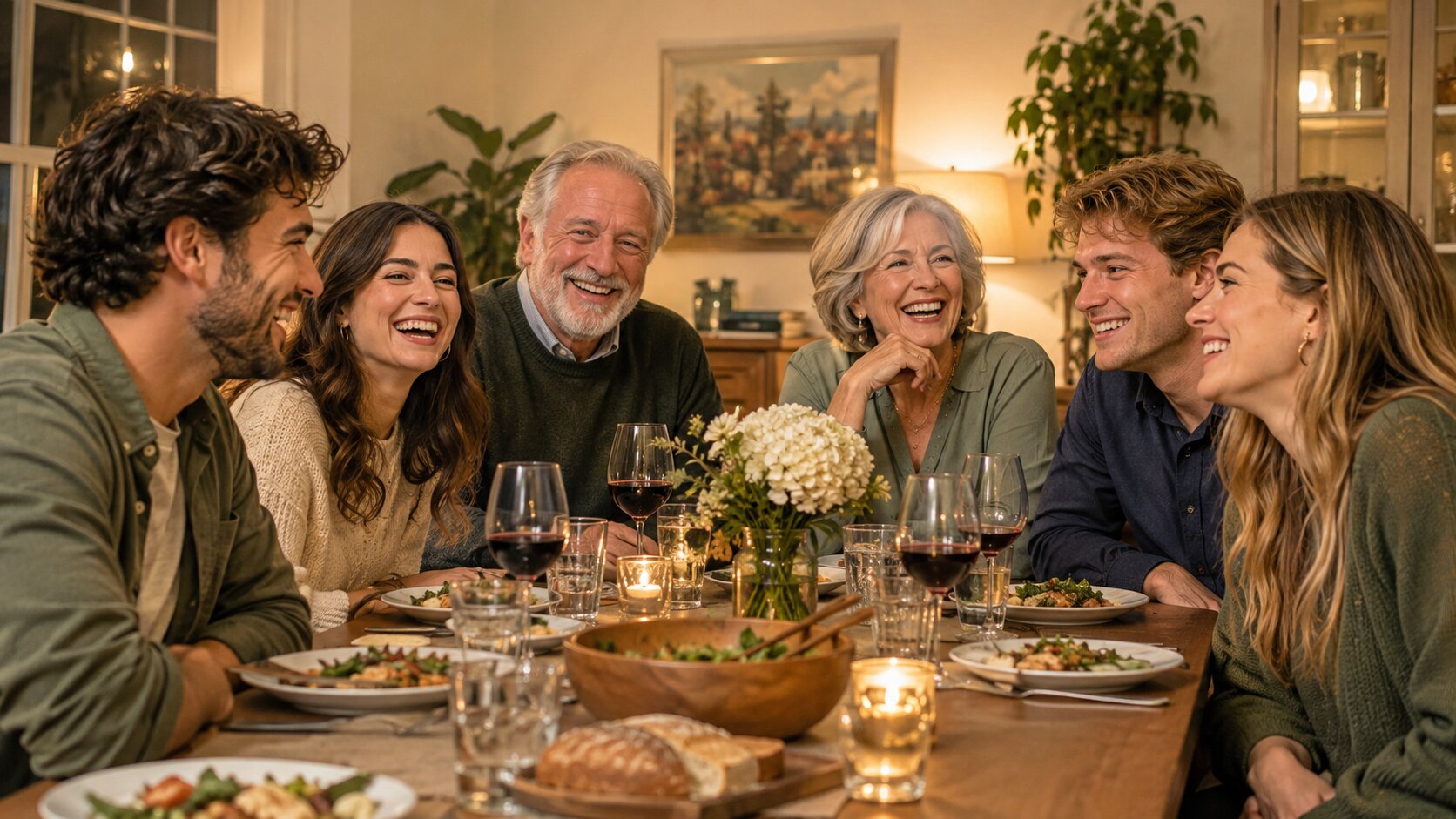
Combining multiple images with AI means giving one model several source photos at once and asking it to build a single scene that contains all of them. Modern tools handle 2 to 8 references per generation — people, products, and locations together — and the mechanics are the same as a two-image merge, except that every extra photo adds another possible contradiction for the model to resolve.
How Does Combining Multiple Images Work?
Each reference is encoded separately, then all of them are attached to the same denoising process alongside your prompt. The model has to satisfy three demands simultaneously: the prompt's description of the scene, and each reference's contribution to it.
That means the ordering of your uploads carries meaning. The first reference usually anchors the composition, the background, and the overall light. The later references supply elements to be placed into that frame. When a reference contradicts the anchor — a different light direction, a different camera height — the model averages the difference and you get a compromise that can look muddy.
So with multiple inputs, preparation matters more than prompting. One badly lit source photo can undercut an otherwise perfect set.
How to Combine Multiple Images with AI — Step by Step
Step 1 — Normalise every source
- Match the light. All sources should look like they came from the same session or the same type of lighting.
- Match the camera height. Eye level for portraits, tabletop for products.
- Match the resolution. Mixing a 4000px phone photo with a 600px web image gives the model an obvious weak link.
- Clean the backgrounds. Busy backgrounds behind each subject confuse the segmentation step.
Use Try it freeAI Image EditorTransform a single photo with a text prompt — restyle, re-light, re-imagine. to re-light or crop sources that do not match.
Step 2 — Upload in order of importance
The first upload anchors the scene. Build your order around that:
- Group of people: most prominent person first, or the photo with the best background.
- Product set: the hero product first.
- Person plus products: the person first, then the products to place around them.
- Room plus products: the room first.
Step 3 — Name every subject and its position
With three or more references, the prompt must be explicit, because the model has no way to infer which reference is which. Use a numbered or positional description:
"Three people standing side by side in a modern kitchen, left to right: the woman in the red jacket, the man in the blue shirt, the woman in the yellow sweater. Morning light from the window on the left."
"Three skincare bottles arranged on a marble shelf against a soft beige background, the tall white bottle in the centre, the shorter green bottle on the left, the amber jar on the right."
Step 4 — State the count
Add "exactly three people, no other people in frame". This one sentence removes the most common multi-reference failure.
Step 5 — Choose the aspect ratio for the arrangement
A group shot needs horizontal room; a product trio on a shelf works in 4:5. Choosing the ratio before you generate saves a round of reframing later.
Step 6 — Generate multiple variations
With many references the layout space is large, so a single generation is a gamble. Generate 2 to 4 variations and pick. This is where most people under-use the tool.
Step 7 — Fix one thing at a time
If two people are swapped, say so directly in the next run: "the woman in red on the left, the man in blue on the right". If the light is inconsistent, name the light. Rewriting from scratch is slower than correcting.
What Can You Combine From Multiple Photos?
A group portrait from separate photos. The classic: four people photographed in two different places become one team or family shot.
A product family shot. Several products arranged together for a bundle listing or a range banner.
A styled flat-lay. Product plus ingredients plus packaging plus a surface, composed as one overhead shot.
A scene with people and props. A person in a room that also contains their laptop, coffee, and plant.
A character in a location. A person or pet placed into a plate you already own.
A before-and-after layout. The same room before and after, or a product in its packaging and out of it, as one image.
A collage-style marketing banner. A grid of product shots with a person in one panel, generated as a single image.
A room with multiple products styled. Furniture or decor rendered as one scene instead of individual shots.
How to Get More Realistic Results With Many Inputs
Normalise before you upload. This is worth repeating because it is the highest-leverage step with multiple references. Re-light, crop, and match exposure across the set first.
Use fewer, better references. Three excellent photos beat six mediocre ones. If a source does not earn its slot, leave it out.
Keep angles consistent. Mixing a straight-on shot with a three-quarter shot of the same product type produces awkward geometry.
Give each subject a distinct role. "The bottle in the background is out of focus" and "the watch in the foreground is sharply focused" produce depth instead of a flat lineup.
Keep the background in one reference only. If two references both contain a full background, the model has to reconcile them. Crop the backgrounds out of all but one.
Describe depth explicitly. Foreground, midground, background — the model handles layered arrangements far better when you name the layers.
Generate more variations. With many references, one run is a small sample. Four variations is the practical minimum.
Common Problems and Solutions
| Problem | Why it happens | Fix |
|---|---|---|
| A duplicated or extra person | Subject count was ambiguous | State the exact count and say "no other people in frame" |
| People swap positions between runs | The model assigned positions differently each time | Anchor each person to a side: "left, centre, right" |
| One subject looks pasted on | That source had a different light or scale | Re-light or re-crop that source, then re-run |
| The scene looks flat | No depth information in the prompt | Name a foreground, midground, and background |
| Products overlap or collide | No spacing information given | Describe the arrangement and the gaps explicitly |
| One product is blurry or warped | Weak reference, or a complex shape | Use a sharper, more front-facing source |
| The overall image looks muddy | Too many contradictory references | Reduce to the three most important inputs |
Frequently Asked Questions
How many images can I combine with AI at once?
Most 2026 AI combiners take 2 to 8 source photos per generation. Dream Pixel AI Image Combiner accepts up to 8 images and can produce 1 to 4 variations of the same combination in one run.
How do I put multiple people into one photo?
Upload one photo per person, in the order you want them placed, then write a prompt that states the exact count and each position — for example "three people standing side by side on a beach, left to right: woman in red, man in blue, woman in yellow". Sharp, similarly lit source photos give the cleanest group shot.
Why do extra people appear when I combine several photos?
The model is estimating how many subjects belong in the scene, and with several references that estimate is uncertain. State the number explicitly — "exactly three people, no other people" — and it stops guessing.
Can I combine product photos into one scene?
Yes. Upload each product shot, lead with the product that should dominate the frame, and describe the arrangement, surface, and lighting. Labels and small print are the least reliable elements, so plan to add text afterwards.
What happens if I upload more than eight images?
Most tools cap the reference count for a single generation because every extra image adds cost and layout ambiguity. Split large sets into separate generations and combine the results, or run several variations from the same set.
Can I get more than one output from the same set of photos?
Yes. Dream Pixel AI Image Combiner can generate up to 4 variations per run, which is especially useful with many references because the layout space is much larger.
Which AI Image Combiner Should You Use?
- Best for multi-reference composites: Dream Pixel AI Image Combiner — up to 8 inputs, up to 4 variations per run, prompt-driven arrangement.
- Best for preparing a set of sources: Dream Pixel AI Image Editor — re-light, crop, and upscale each photo to match.
- Best for turning one product shot into a whole set: Dream Pixel AI Photoshoot Generator.
- Best for product backgrounds specifically: Dream Pixel AI Product Photo Background.
Start with three references rather than eight — once you see how the ordering behaves, you can scale up. Open Try it freeAI Image CombinerCombine up to 8 photos into a single AI-composed image. and try it.
Want a workflow question answered? Get in touch — we read every message.
Try these tools
Try it freeAI Image CombinerCombine up to 8 photos into a single AI-composed image.Try it freeAI Image EditorTransform a single photo with a text prompt — restyle, re-light, re-imagine.Try it freeAI Photoshoot GeneratorTurn a single product photo into a full photo set.Try it freeProduct Photo BackgroundGenerate clean, marketplace-ready backgrounds for product shots.Sources
- Google Research — Imagen Editor — Reference for multi-reference editing and how text conditioning scales with additional inputs.
- Stability AI — Research — Reference for latent diffusion pipelines that accept multiple reference images per generation.