Can I Place a Person into a Different Background with AI?
Yes — AI can place a person into a different background. The difference between a background swap and a true composite, and what makes it real.
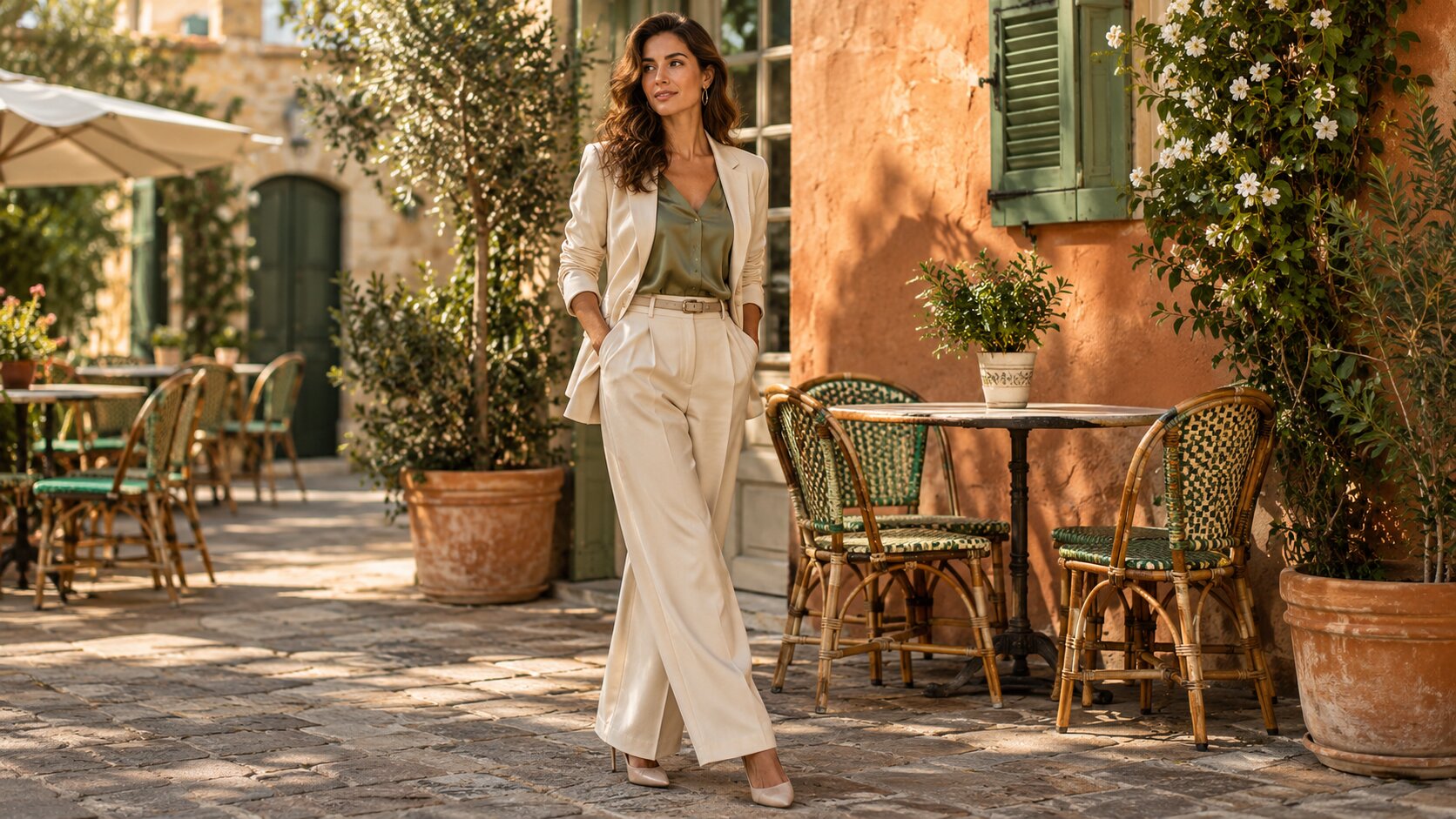
Yes — you can place a person into a different background with AI, and with modern models the result can be genuinely photorealistic. Upload the portrait, upload the destination scene, describe the finished shot, and the model rebuilds the frame so the person appears to have been standing there all along. The catch is that realism comes from the agreement between your two source photos far more than from the prompt.
How Placing a Person Into a Background Works
Two different operations share the same name, and choosing the right one matters.
A background swap starts from your photo and replaces what is behind the subject. The subject is largely preserved; the model paints a new backdrop around them. This is the right tool for a studio portrait that needs a different colour or scene.
A true composite starts from two photos and rebuilds the entire frame. Your portrait and the destination landscape were shot separately, and the model fuses them into one photograph where the light, shadows, and depth all agree.
If the person and the location came from different cameras in different places, you need the second operation. That is what Try it freeAI Image CombinerCombine up to 8 photos into a single AI-composed image. does.
How to Place a Person Into a Different Background
Step 1 — Pick the source photos
The person's photo should be sharp, front-facing or three-quarter, and lit as evenly as possible. The background photo should be free of other people who might get confused with your subject.
Step 2 — Match the light first
Look at the shadows in both photos. If the portrait is lit from the left and the landscape is lit from the right, the composite will look wrong no matter how good the prompt is.
Fastest fix: re-light the portrait with Try it freeAI Image EditorTransform a single photo with a text prompt — restyle, re-light, re-imagine. first — "re-light this portrait with soft outdoor sunlight from the left" — and then merge.
Step 3 — Upload and order
Upload the destination scene first if the scene should define the composition, or the portrait first if the person should dominate the frame. For most portrait-into-landscape work, the scene goes first.
Step 4 — Describe the finished photograph
Say who, where, and how the light behaves:
"The woman from the portrait standing on the rocky ridge in the landscape photo, full body, shot from behind, golden hour rim light, wind in her hair"
Avoid verbs like "paste" or "put" — describe the picture you want, not the edit you want.
Step 5 — Generate variations and pick
Run 2 to 4 variations. Then check four things in this order: shadow direction, edge quality around hair, skin tone against the new light, and body proportions. Those are the four things viewers notice.
Step 6 — Finish the details
If the ground shadow is missing, ask for it explicitly in a refinement pass: "add a soft ground shadow beneath her feet, matching the light from the left". If the skin is too cool for the scene, ask for warmer skin tone.
What Can You Actually Place People Into?
Travel and holiday photos. Two people photographed in two places become one shared holiday shot.
E-commerce and product modelling. Put a real model into a lifestyle scene without a studio booking.
Professional headshots. A portrait shot in a messy room becomes a clean office backdrop with the right light.
Wedding and event galleries. Bring everyone into one group photo when the original shoot could not.
Real estate and interiors. A person in a staged room, retouched to look natural rather than pasted on.
Film and storyboards. Place a character into a location plate before the shoot.
Memories and memorials. Combine relatives who were never photographed together.
Seasonal swaps. The same person on a summer beach and a snowy street.
How to Get More Realistic Results
Fix the source photo, not the prompt. The single biggest realism gain comes from pre-processing the portrait: even out the lighting, clean the background slightly, and crop to a natural frame. Prompt rewriting cannot recover detail the model never received.
Match the camera height. A portrait shot from slightly above and a landscape shot from below will produce a person whose head looks too large. When you can, re-shoot or crop to eye level.
Keep skin tones coherent. If the portrait is shot under a warm indoor bulb and the scene is overcast daylight, tell the model to neutralise the skin tone.
Include a shadow. A person standing in a place with no contact shadow reads as a sticker. Say "soft shadow falling to the right on the ground" or let the model infer it from the scene.
Give the model the depth. Mention foreground or background elements — "slightly out of focus city lights behind her" — so the person sits inside the scene rather than on top of it.
Ask for one thing at a time in refinements. "Warmer skin, matching the golden light" rather than a full prompt rewrite.
Upscale after you are happy. Detail holds up better when you upscale the final chosen frame rather than pushing a higher tier on every attempt.
Common Problems and Solutions
| Problem | Why it happens | Fix |
|---|---|---|
| The person looks like a sticker | No contact shadow and no depth cue | Ask for a ground shadow and mention foreground or background blur |
| Hair has a bright fringe | The cut-out boundary met a busy background | Use a tighter crop so the edge falls in a clean area, or pick a calmer background |
| Skin tone does not match the scene | Different white balance in the two photos | Name the light in a refinement: "warm skin tone matching the golden hour light" |
| The person looks too big or too small | No scale information and different camera distances | State the framing and the shot distance relative to the scene |
| Body proportions look odd | The two photos were shot from different heights | Re-crop or re-shoot to a matching eye level |
| The background looks like wallpaper | The model kept the new scene too sharp | Ask for shallow depth of field so the background reads as photographic |
| Colours of clothing shift | The model re-renders the subject | Accept the shift or correct it afterwards in a design tool |
Frequently Asked Questions
Can AI put a person into a different background?
Yes. Modern image models can take a portrait and a separate scene and generate a single photograph where the person appears inside that scene, with matching light, shadows, and edges. The realism depends mostly on how well the two source photos agree on lighting and camera height.
What is the difference between a background swap and placing a person in a background photo?
A background swap keeps your original photo and replaces only the area behind the subject — the subject pixels are mostly preserved. Placing a person into a different background merges two separate photos and rebuilds the whole frame, which is required when the person and the location were photographed separately.
Why does my placed person look pasted on?
Usually the lighting. If the portrait was shot indoors and the destination outdoors at noon, the shadows and colour temperature contradict each other. Re-light the portrait to match, name the light in your prompt, and the composite usually snaps into place.
Does AI keep the face accurate when placing a person in a new scene?
It keeps the face recognisable, because identity travels through a numerical embedding rather than copied pixels. Exact freckle patterns, small tattoos, and hair texture can shift. Sharp, front-facing, well-lit source photos minimise the drift.
Can I place two people from different photos into one scene?
Yes, and that is one of the most requested composites. Give each person a sharp, similarly lit source photo, state the count of people, and describe their positions. Watch the eye level — two photos shot from different heights produce a person whose proportions look wrong.
Is it legal to place a person into a photo of somewhere else?
That depends on the rights to both the person photograph and the location image, and on how the result is used. Putting someone in a place they were never at can be misleading, and several jurisdictions treat digitally altered commercial imagery as disclosure-sensitive. Use it for creative and editorial work rather than to imply a false event.
Which Tool Should You Use?
- Best for merging a person with a separately shot location: Dream Pixel AI Image Combiner — two to eight references, prompt-driven placement.
- Best for replacing the backdrop behind an existing portrait: Dream Pixel AI Background Changer — faster and preserves your subject more faithfully.
- Best for cleaning up the portrait before you place it: Dream Pixel AI Image Editor — re-light, clean up, and crop first.
- Best for producing a whole staged series: Dream Pixel AI Photoshoot Generator — one portrait becomes many staged frames.
For most people the winning sequence is: clean the portrait, then merge. Open Try it freeAI Image CombinerCombine up to 8 photos into a single AI-composed image. and try it with your own two photos.
Want a workflow question answered? Get in touch — we read every message.
Try these tools
Try it freeAI Image CombinerCombine up to 8 photos into a single AI-composed image.Try it freeAI Background ChangerSwap photo backgrounds — solid colors, scenes, or AI-generated.Try it freeAI Image EditorTransform a single photo with a text prompt — restyle, re-light, re-imagine.Try it freeAI Photoshoot GeneratorTurn a single product photo into a full photo set.Sources
- Google Research — Imagen Editor — Reference for text-guided editing that preserves the structure of a supplied portrait photograph.
- Adobe — Photoshop Generative Fill documentation — Reference for how commercial editors handle person-into-background composites and the matching of light and shadow.