AI Multiple Face Swap vs. Photoshop: Which Is Better?
Swapping four faces in Photoshop takes hours of masking and blending. An AI multiple face swap does it in one render. Here is the honest comparison.
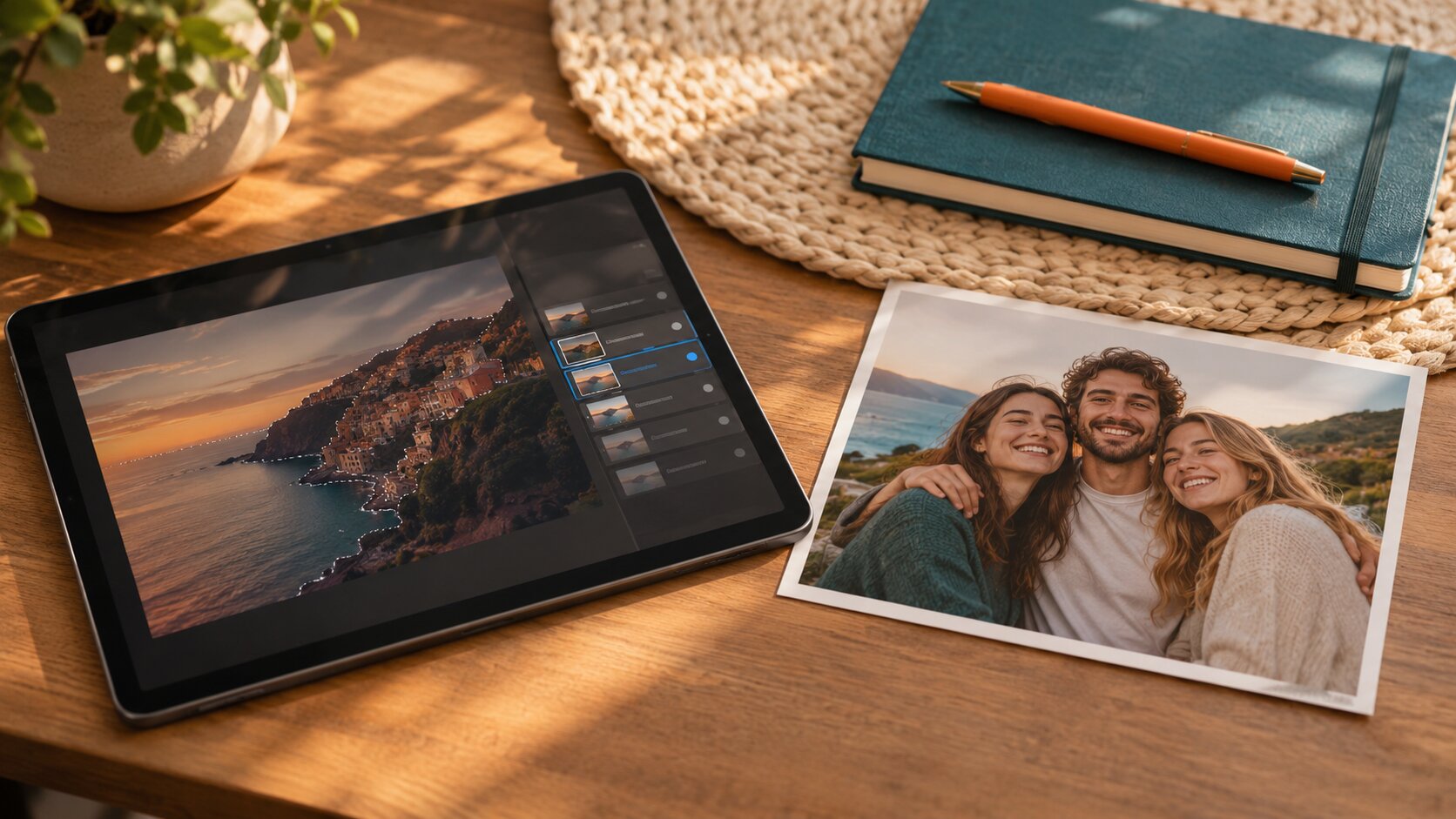
Swapping four faces in Photoshop means four separate jobs: select the face, build a mask that survives the hair, match the skin tone, rebuild the shadow direction, and blend the boundary. Each one takes a practiced editor a good 20 to 40 minutes, and every face you add multiplies both the effort and the risk that one of them looks pasted on. An AI multiple face swap does the same work as a single render that finishes in seconds.
Which one is right depends on what you are making, not on which is more powerful.
AI Multiple Face Swap vs. Photoshop: The Comparison
| Dimension | AI multiple face swap | Photoshop |
|---|---|---|
| Time for a group of four | One render, seconds | 1 to 3 hours for a competent editor |
| Skills required | None | Selection, masking, blending, colour theory |
| How the new face is built | Re-rendered to fit the scene | Pixels copied from the source photo |
| Lighting on the new face | Taken from the scene | Copied from the source, then corrected by hand |
| Consistency across several faces | One shared light model | Each face corrected separately |
| Skin tone matching | Automatic | Manual, per face |
| Edge and hairline handling | Model blends it | Hand-painted mask, brush by brush |
| Precision control | Nothing beyond the photos you pick | Pixel-level, total |
| Cost | A few credits per render | A subscription plus your time |
| Works on a phone | Yes | No |
| Best for | Group photos, quick edits, social content | Precision work, print, compositing |
Why Manual Face Swaps Look Pasted On
This is worth understanding, because it explains where each tool wins.
A manual swap copies pixels. Those pixels carry the original lighting, the original camera grain, the original skin texture and — critically — the original shadow direction. A face photographed in flat indoor light and pasted into a scene lit from the side will still have its soft, shadowless lighting. No amount of careful masking removes that, because the information is not in the mask.
Generative swapping throws the pixels away. The new face is lit by the target's light and shaded by the target's pose, so it belongs to the new scene by construction. When it fails, it fails in a generative way — a slightly wrong nose, an off skin tone — which is far less noticeable than a face with the wrong shadow.
That is the honest argument for the AI approach, and it is a structural one rather than a matter of polish.
Where Photoshop Still Wins
Being fair about this matters, because the comparison articles that only praise the new tool are not the ones worth reading.
Pixel-level precision. If you need the jawline to land on exactly one more pixel, no setting will get you there. A pen tool and a mask will.
Untouched areas. A manual composite leaves every pixel you did not select exactly as it was. A generative re-render changes the face region and leaves the rest alone too, but a perfectionist who needs the original skin texture byte-for-byte has no equivalent.
Art direction. When you are building a composite rather than a swap — placing a person into a new scene, matching two lighting setups, building a poster — a layered editor is simply the right instrument.
The Realistic Workflow: AI First, Editor Second
For most people the answer is not either/or. It is a sequence.
- Run the AI swap first. One group photo, up to eight replacement faces, one render. You get a correctly lit, correctly toned frame in seconds.
- Look at the result at full size. If every face is clean, you are done — crop it and ship it.
- Open an editor only if one specific thing is wrong. A hairline that needs a brush stroke, a crop, a colour grade across the whole frame, a little grain matched to the original.
That sequence gets you the speed of the AI tool and keeps the precision of a manual workflow for the rare case where you actually need it. The reverse order does not work — hand-editing a face into a photo first and then asking an AI model to swap another face into it usually gives you worse results than doing the swap first.
The Cost Reality
| AI multiple face swap | Photoshop | |
|---|---|---|
| Entry cost | A few credits per render | A monthly subscription |
| Per-group-of-four | 1 render | 1 to 3 hours of your time |
| Software install | None, it runs in the browser | A full desktop install with a learning curve |
| Hardware | Any phone or laptop | A machine that can run the editor |
| Learning time | Seconds | Days to weeks for competent results |
When your time is worth more than the software subscription, the arithmetic is not close. And for the many people who want the result rather than the process, the difference between a tool that takes five minutes to learn and one that takes a month is the whole decision.
Frequently Asked Questions
Is AI face swap better than Photoshop?
For speed and for group photos, yes: an AI multiple face swap replaces up to eight faces in one render, while Photoshop needs a separate selection, mask, colour match and blend pass for each face. Photoshop still wins on precise control over a single face, because you can nudge pixels by hand and no setting gives you that.
How long does it take to swap four faces in Photoshop?
For a competent editor, roughly 20 to 40 minutes per face once you account for selecting the face, masking the hair, matching skin tone and fixing the boundary — so an hour or more for a group of four, and considerably longer for a beginner.
Why do manual Photoshop face swaps look fake?
Because a manual swap copies pixels, and copied pixels carry the original lighting, the original camera grain, the original skin texture and the original shadow direction. The shadow in particular is hard to disguise, which is why a pasted face reads as a composite within a second.
Can I still use Photoshop after an AI face swap?
Yes, and it is often the right next step. Run the AI swap first for the faces and the overall look, then open the result in an editor to fix one stubborn boundary, crop it, colour grade the whole frame or add a finish.
Do I need to know how to edit photos to use an AI multiple face swap?
No. The whole workflow is upload, generate, download. There is no layer stack, no mask, no brush and no colour matching to learn, which is what makes it usable on a phone.
Which produces a more realistic result?
A good AI result, for most group photos. The generated faces are lit by the scene they sit in, so they belong to the photo by construction. A skilled manual composite can match it, but only with far more time and a trained eye.
Is there anything Photoshop does better for face replacement?
Precision on a single face, total control over the boundary, and the ability to keep the original pixels completely untouched in areas you did not select. For a fine-art print where every detail matters, that control has value.
Which Should You Use?
- For replacing several faces in a group photo, quickly: Try it freeAI Multiple Face SwapReplace up to eight faces in one group photo in a single run. — one group photo, up to eight replacement faces, one render, no watermark.
- For one face in one photo: Try it freeAI Face SwapSwap faces between two photos with realistic results..
- For placing people into new scenes rather than swapping faces: Try it freeAI Image CombinerCombine up to 8 photos into a single AI-composed image. or Try it freeAI Image EditorTransform a single photo with a text prompt — restyle, re-light, re-imagine..
- For pixel-level precision on a finished frame: open the AI result in your editor.
Want a workflow question answered? Get in touch — we read every message.